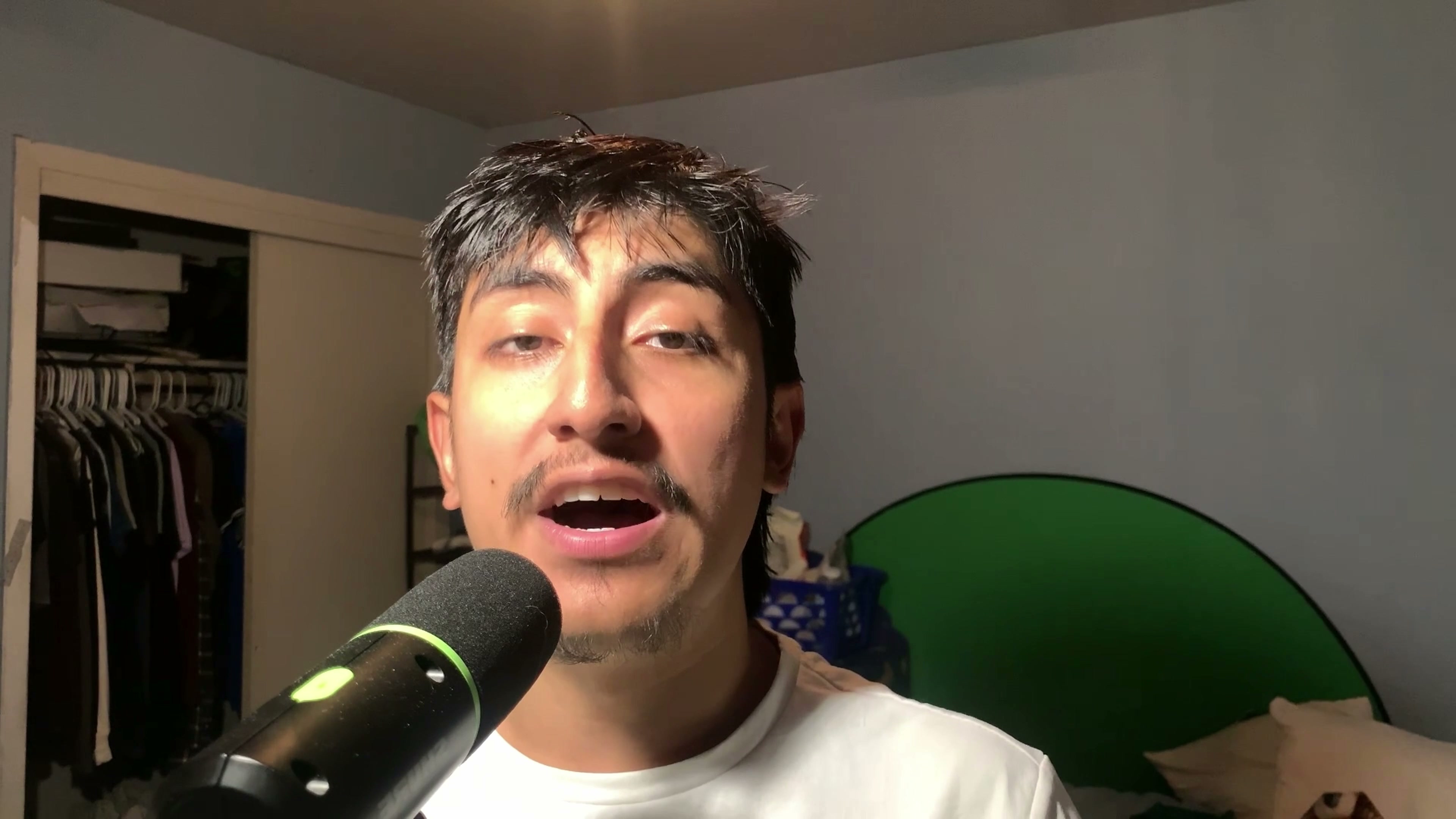
TL;DR: Gemini Omni inside Google Flow can edit your real footage, not just generate new clips. You feed it a short video of yourself talking, your logo, and one structured prompt, and it returns your same footage with editorial typography, brand slates, and transitions baked in. The catch is a ten second input limit, so it shines on hooks, CTAs, and closers. The full fill-in-the-blank prompt is free in my community.
Table of Contents
- What Can Gemini Omni Actually Edit?
- How the One Prompt Workflow Works
- Why Attaching Your Assets Is the Most Important Step
- Pitfalls That Will Burn You
- Frequently Asked Questions (FAQ)
- Conclusion and Next Steps
🎁 Grab the full AI Video Editor Prompt free → https://www.skool.com/ai-academy-with-robby-6849/classroom/4ab829c5?md=bb19ddb34fcf46568622cd526e884f1e
What Can Gemini Omni Actually Edit?
Most people use Google Flow to generate footage from scratch. The underrated move is handing Gemini Omni footage you already recorded and letting it do the edit: composited facecam cards, giant kinetic serif words, brand logo slates, semantic color floods on the payoff line, and whip transitions between beats.
One important constraint shapes everything: Gemini Omni takes a maximum of ten seconds of input video per generation. That makes it the wrong tool for editing a full video top to bottom, and exactly the right tool for the three places where an edit earns its keep: the hook, the call to action, and the closing shot.
How the One Prompt Workflow Works
The whole system is one templatized prompt. The design style, the special effects, and the transitions are locked in the prompt and never change. The parts you swap per video:
- The transcript anchor. Write out exactly what you say in the clip, word for word. Because of the ten second cap, your clip and its transcript have to match tightly.
- The on-screen text whitelist. The only strings allowed to appear in the frame, spelled exactly. This is what stops the model from inventing random text.
- The shot list. Split the clip into two to four beats, one shot per phrase, with start and end times.
Then in Google Flow: click the plus button, upload your media, select the clip you want as the reference, paste the filled prompt, and generate two or three samples. Cherry-pick the best one instead of iterating one render over and over, because every re-render rerolls every shot.
Why Attaching Your Assets Is the Most Important Step
Before I dialed this in, Gemini Omni kept making things up. It invented logos that looked nothing like the real brand and hallucinated details into the frame.
The fix is doing two things together: attach the real assets (your source video and your logo file), and then explicitly reference both inside the prompt. When the prompt says "the logo image" and "the source video" and those files are actually attached, hallucinations drop off dramatically. The model uses what you gave it instead of inventing its own version.
Pitfalls That Will Burn You
These are the failure modes I hit while iterating on the prompt, so you do not have to rediscover them:
- Animated count-ups break. Ask for digits counting from one to seven and the numbers smear and land wrong. Use a static number with a single pop.
- Verbatim screenshots break. Prompting it to copy dense text from a screenshot comes back as gibberish. Keep text as short whitelisted strings, or composite the screenshot in post.
- No pixel measurements in the prompt. The model will happily render your measurement as literal text on screen.
- Turn off the visible watermark. There is a toggle in Flow. Leave it on and your output ships with a watermark.
- Expect a cleanup pass. Some renders miss small things. Treat Gemini Omni as an assistant that does most of the work, then patch the remainder in your editor.
Frequently Asked Questions (FAQ)
How long can the input video be? Ten seconds per generation. Trim your clip before uploading and build longer videos segment by segment.
Does it change my voice or audio? Do not trust it with your audio. Lay your original recording back over the result in your editor so your voice stays untouched.
Do I need to write a new prompt for every video? No. The prompt is templatized: the style system stays constant and you only swap the transcript, the text whitelist, and the shot list.
Where do I get the prompt? It is posted free inside my Skool community, in the YouTube Resource & Asset Library classroom.
Conclusion and Next Steps
Gemini Omni is not replacing your editor yet, but for the ten seconds of a video that matter most, it turns a raw talking head clip into a finished edit from a single prompt. Grab the prompt, fill in the blanks for your own video, and generate a few samples.
🎁 The full AI Video Editor Prompt, free → https://www.skool.com/ai-academy-with-robby-6849/classroom/4ab829c5?md=bb19ddb34fcf46568622cd526e884f1e