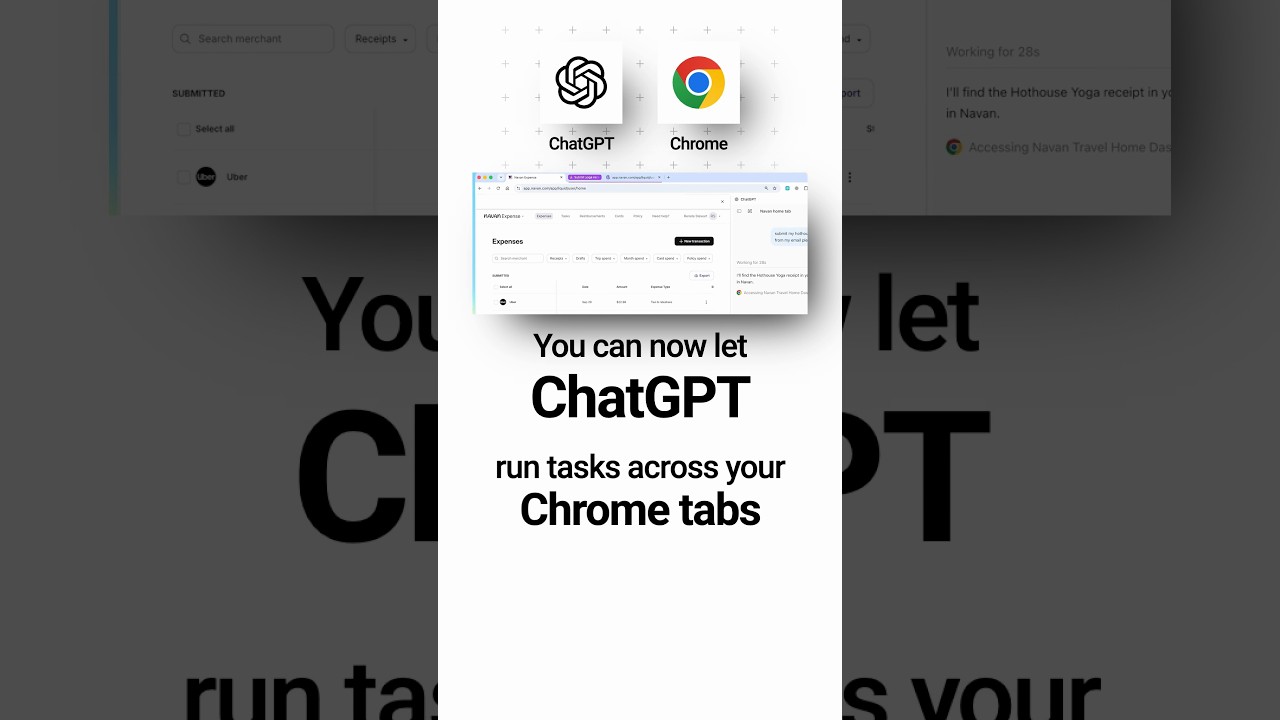
On October 15, 2026, OpenAI shipped an update that turns the ChatGPT browser extension from a reader into a doer. It works on the sites where you are already signed in, which is exactly what makes it useful and exactly what makes it worth setting up carefully.
The extension is not the new part
Worth clearing up first, because the top reply to OpenAI's launch post was "how is this new." The extension already existed. Its Chrome Web Store listing shows 7 million users.
The new part is a mode called Work.
Chat mode and Work mode
- Chat mode opens ChatGPT beside the page you are on. You can ask about the page, mention an open tab to pull it in as context, or highlight text and send just that selection. It can use context from your open tabs when a task needs it.
- Work mode controls those tabs. It sends messages, fills out forms, downloads files and groups a pile of tabs for you.
Side chat works in Chrome, Edge, Brave and Vivaldi. Opera supports tab mentions and browser control from the desktop app, but not side chat.
OpenAI's own demo
The demo is one line typed into the side chat: submit my Hothouse Yoga receipt from my email.
ChatGPT finds the 85 dollar receipt in Gmail, forwards it to the expense app and saves the expense as a draft. The transcript shows "Worked for 2m 36s." Then it comes back with one question before it submits, because the expense had a required field missing.
That shape is the point. It does the tedious middle part and hands the decision back to you.
The safety model
OpenAI's own documentation says to treat page content, selected text and video transcripts as untrusted context, and to review a website before letting ChatGPT continue. That is prompt injection in plain words: anything on a page could be trying to give your agent instructions.
So by default it asks before it interacts with each new website, based on the host name. You get four choices:
- Allow once
- Allow for this site
- Allow for all sites
- Decline
You can manage the allowlist and blocklist later in the desktop app under Settings, then Computer Use, then Manage. I would keep "Allow for all sites" off for anything near your email, your bank or your company's internal tools. For how a different vendor handles the same problem, see my post on Claude Duet, which also asks before any step you cannot undo.
The one limit to check
OpenAI's launch post says the extension is available for all ChatGPT plans. OpenAI's own help page says Work is available on ChatGPT web and mobile for eligible paid plans, and in the desktop app when it is included for your plan and workspace. Those two readings do not line up, so check your plan before you build a workflow on Work mode.
My take
An agent that uses the logins you already have removes the single biggest blocker for browser automation: authentication. That is also why I would start it on low risk jobs, like research across tabs, pulling a receipt or filling a form you can review. Give it a week on small tasks before you hand it anything that sends.
Sources: OpenAI's browser extension guide, the Chrome Web Store listing, OpenAI's help page on where Work is available and the launch post
Watch the short above for the quick version. If you want the AI workflows and Claude Code skills I use every day, join the AI Academy community on Skool: https://www.skool.com/ai-academy-with-robby-6849/about