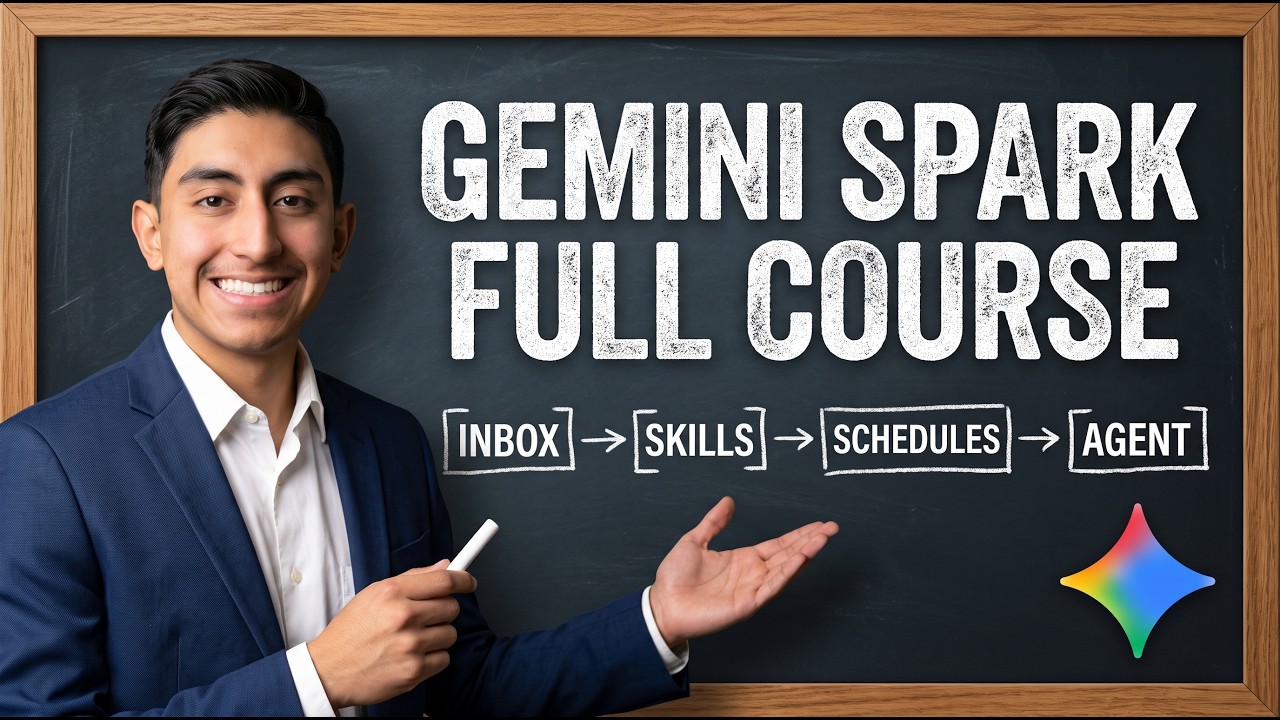
TL;DR: Gemini Spark is not a chatbot. It is Google's agentic workspace: it runs tasks in the cloud after you close the tab, it holds a logged in browser and a machine that executes code, and it can watch your inbox continuously and act. I built a 96 minute course on it because none existed. The single most valuable idea in the whole thing is that a monitor's trigger is not a filter rule, it is a plain English question the agent asks on a loop. Every template I built on camera is free in my community.
Table of Contents
- What Gemini Spark Actually Is
- The Four Surfaces
- Writing a Skill That Spark Will Actually Pick
- Schedules, and the Sentence Google Buries
- Monitors: The Trigger Is a Question
- The Capability Layer Nobody Documents
- Five Rules So It Never Emails Your Clients
- Pricing This for Clients
- Frequently Asked Questions (FAQ)
- Conclusion and Next Steps
🎁 Grab every skill, schedule, and monitor template from the course free → https://www.skool.com/ai-academy-with-robby-6849/about
What Gemini Spark Actually Is
Open the regular Gemini web app and the box says ask Gemini. Flip the toggle in the upper left and the same box, on the same account, now says describe a task. That word swap is the entire product in one detail.
A prompt is a question. It ends when you get an answer. A task is a job. It ends when the work is done, and you do not have to be there while it happens. Spark plans the job, runs it on Google's servers, and keeps running after you close the tab.
Two things people ask immediately:
- The model picker is gone. In Spark you do not choose a model. Google decides.
- If you do not see the toggle at all, it is a staged beta tied to your plan and account. No amount of clicking brings it up. The switch lives under the Gemini logo in the upper left as a two segment control, and the keyboard shortcut is Shift Command S on Mac, Shift Control S on Windows.
The Four Surfaces
Everything in Spark is four ideas, and the shortest version that made it click for me is this:
Apps are the hands. Skills are the manners. Schedules are the alarm clock. Tasks are the work.
- Tasks are where work happens. Every job becomes a task, with the finished answer plus the full trail of what it did to get there, kept for weeks. Tasks live in five states, and the one to memorize is Needs input. That is your approval queue, and it is a first class filter, not something buried in settings.
- Schedules are when work happens. Anything on repeat lives here, plus the part almost nobody knows about: whenever something happens.
- Skills are how work gets done. A saved set of instructions you write once and reuse forever.
- Connected Apps are what Spark is allowed to touch. This is the most consequential page of the four, because every switch you flip hands over real access.
Google Workspace is a single toggle covering Gmail, Docs, Drive, and Keep. It is all four or nothing. Third party apps (Canva, Dropbox, Otter, Zillow and friends) are off by default and each carries an @ handle. Workspace apps do not have one, so there is no @Gmail. You just talk about your email normally and it knows.
The rule of thumb: connect only what you need, because every extra connected app widens the blast radius.
Before you build anything, open Settings and then Usage limits. There are two limits running at once, a current one and a weekly one, on two separate clocks. This matters more than it sounds, and I will come back to why.
Writing a Skill That Spark Will Actually Pick
If you have used Claude skills, the mental model transfers directly. Choose Create manually over the wizard, because it shows you the real schema, and the schema is only three fields: name, description, instructions.
Three things I learned building mine on camera:
- The name field sluggifies. Capitals go lowercase and spaces become hyphens, so "Client Weekly Recap" is stored as
client-weekly-recap. Just name it kebab case on purpose so it looks deliberate. - The description is not decoration. It is how Spark decides to auto pick your skill when you never asked for it. Write it as a trigger: "Writes the Friday client update. Use when I ask for a weekly recap for a client."
- A skill is not a personality, it is a contract about the shape of the output. Cap the length. Name the exact sections. Say what to write when a section is empty, or you will get filler. And ban invention outright: the last line of mine is "Never invent progress that did not happen." That one line is the difference between a useful client update and a confident lie you forward to a paying customer.
Two traps on save. The save button is labeled Create, so stop hunting for a Save button. And after a successful save, navigating away still throws a "leave without saving" warning. It is a false alarm. Do not rewrite your skill like I almost did.
Once it is live, call it from any task with a forward slash, or let the agent reach for it on its own when the job matches.
Schedules, and the Sentence Google Buries
Read the label on a running schedule carefully. It says daily around 7, not at 7. Google is telling you in the interface that this is approximate. Believe them, and never build anything that needs a precise minute.
The mechanics:
- Six frequencies: hourly, daily, weekly, monthly, yearly, once. There is no cron.
- Day of week toggles appear only on weekly. If you switch to daily and they vanish, that is correct behavior, not a bug.
- Quarter hour granularity across the whole day, so 96 time slots and nothing in between.
- Build schedules from the Schedules page, not the composer. Build from the composer and your task list shows your entire prompt as the title.
- Run now is for testing, not for running. Build it, run it now, read the output, fix the instructions, then let it go daily. Otherwise you wait until tomorrow morning to find out it was wrong.
Now the sentence Google buries on that page: schedules run at approximate times, use more of your limit at peak hours, and will not run if you reach your limit.
Read that again. If you run out of quota, your automations do not warn you. They simply stop. Every schedule you build spends the same budget you saw in Settings.
Monitors: The Trigger Is a Question
There is a gray line under the schedules form that says you can ask Gemini to create and edit event based schedules and monitors. That is Google quietly telling you that two thirds of this feature is not in the form.
You cannot click your way to a monitor. There is no button. The only way to build one is to ask for it in a sentence. The most powerful thing in Spark has no UI.
So I typed what I wanted: watch my inbox, when a real business inquiry lands tell me who, what company, and the one sentence that shows what they want, ignore newsletters and receipts, and do not email anyone on my behalf.
That was the entire build. No frequency. No time. No filter rule. Spark named the task, created the schedule entry, and wrote the spec itself.
Then I opened what it stored, and this is the idea worth the whole course. The trigger reads:
Has a new email arrived in my Gmail in the last few hours that is an inbound business inquiry, such as someone asking about pricing, a proposal, hiring me, or a partnership, excluding newsletters, receipts, and automated mail?
That is not a rule. It is a yes or no question asked continuously on a loop. When the answer comes back yes, the agent starts working. Once that clicks you can build anything, because the only real skill is writing a good question.
A good trigger question is narrow, observable, and time bounded, and it carries its own exclusions. A bad one is vague ("anything important") or unobservable ("until the client is happy"). If yours fires constantly you are missing exclusions. If it never fires, your condition is too specific.
One more thing worth knowing: Spark formalized my sloppy sentence into a numbered spec with an objective and deliverables, and it kept my guardrail word for word. You do not have to write the spec. You do have to read the one it wrote, because that is what actually runs.
The Capability Layer Nobody Documents
Open the Spark settings page and read it slowly. Turning Spark off deletes your browsing data and your remote code execution files and stops your schedules. It offers to clear cookies and sign you out of websites, and to delete the saved files it uses to run code on your remote computer.
None of that is mentioned on the four main pages. Spark is not just Gemini reading your inbox on a timer. It has a real browser with a cookie jar that stays logged in, and its own machine that executes code. On one task it named its own internal tools, including VM: execute bash, which is a shell on a virtual machine Google runs for you.
The consent gate around this is genuinely well designed. It names the specific capability, it shows you the plan before you approve so you are approving an intent rather than a blank check, and it warns you in Google's own words about unexpected data sharing. Permission is granted per thread, not forever. A new task asks again. Do not be annoyed by that, it is the right default.
And yes, you can point it at your own tools. Connected Apps, scroll to the bottom, and there is a single easy to miss text box for custom MCP servers. Paste a URL, hit next, and you get a real OAuth dialog with client ID, client secret, and a redirect URI, plus a fair warning that the app has not been reviewed by Google.
Honest disclosure: I took this as far as the OAuth screen and did not complete a handshake against a production server. Treat everything past that screen as your homework, not as something I verified. That said, MCP is where the real money is. Wrap a client's CRM, inventory, or booking system in an MCP server, hand it to an agent that runs every morning, and they stop opening the dashboard at all.
Five Rules So It Never Emails Your Clients
You just gave an agent access to your inbox and told it to act while you sleep. Five rules, in order:
- Check the Needs input queue. It is a filter on the tasks page and it is where the agent waits for you. Never looking at it is like having a supervisor who never shows up.
- Write the negative constraint explicitly. "Do not send any email on my behalf" survived word for word into the generated spec. Say what it must not do, not just what it must do.
- Read the spec it generates. It is short, and it is what actually executes.
- Remember permission is per thread. Every new thread asks again.
- Know where the kill switch is. Deleting remote browser data signs it out of everything, and turning Spark off stops every schedule you have.
And once more, because it is the failure that will actually get you: if you hit your quota, automations do not fail loudly. They just stop. Do not put anything genuinely critical behind a consumer plan and then stop checking on it.
Pricing This for Clients
Everything above I tested myself. This section is my opinion, not a fact I can show you.
Take the monitor. A small services business misses two inbound leads a month because one landed on a weekend and one got buried under a newsletter. If their average job is 2,000 dollars, that is 4,000 dollars a month walking out the door, or 48,000 dollars a year.
That math assumes they would have closed both, and plenty of the time they would not have. Sometimes the number is real and sometimes it is a fantasy, so price it against what the client tells you about their own pipeline, not against a number on a whiteboard.
The constraints are real and you should say them out loud in the sales conversation. This runs on a consumer Google account with consumer quotas. Every screen is labeled beta for a reason. There is no SLA and no support contract behind it. Sell the outcome and build the thing. Do not sell an enterprise guarantee on top of a beta consumer product. If the client needs that, this is the prototype that proves the workflow, and the real build comes after.
Frequently Asked Questions (FAQ)
Do I need to know how to code? No. I did not write a single line of code in the entire 96 minutes. Every skill, schedule, and monitor is written in plain English.
Why can I not find Gemini Spark in my account? It is a staged beta tied to your plan and account. If the two segment switch under the Gemini logo is not there, it has not reached you yet.
Can I schedule something to run at an exact minute? No. The interface says "around" for a reason, granularity is quarter hour, and there is no cron. Do not build anything time critical on it.
How do I create an event monitor? By asking for one in a sentence in the task composer. There is no button and no form. Describe the outcome and Spark writes the spec.
What is the difference between a schedule and a monitor? A schedule runs on a clock. A monitor runs on a question that Spark asks continuously, and it starts working when the answer is yes.
What happens when I run out of usage? Your automations stop silently. There is no warning, so check your usage limits page regularly.
What should I build first? The monitor. The daily brief and the skills are nicer versions of things you can already do elsewhere. A question asked on a loop against your real accounts is the genuinely new capability.
Conclusion and Next Steps
Spark is four surfaces and one big idea. The surfaces take an afternoon to learn. The idea, that a trigger is a question you write in plain English and not a rule you configure, is what makes the whole thing worth your time.
Get the question right and the rest is typing.
🎁 Every skill, schedule, monitor, and the reusable trigger question formula, free → https://www.skool.com/ai-academy-with-robby-6849/about