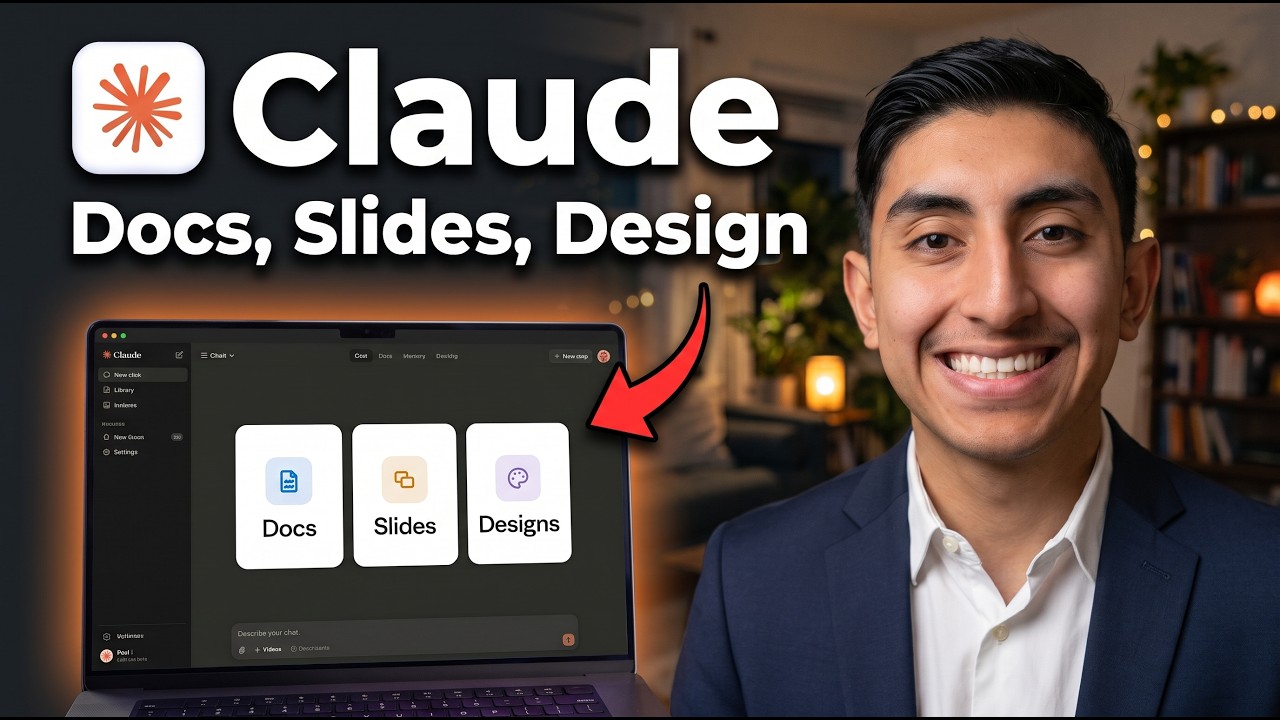
Claude can now make docs, slides and designs without leaving the app. In this tutorial I go through each feature step by step, and I end with the part I think is the coolest: the design system. A design system lets you give Claude your own brand, so everything it makes after that uses your brand.
To show it, I took one text file of rough notes and turned it into a plan for the bank (Docs), a slide deck (Slides), a brand system (Design system) and a landing page with a phone version (Design).
My example is a made up coffee shop called Fern and Flame that is opening a second location. The notes are messy on purpose: dates, an $18,000 budget, risks, all over the place.
What changed in Claude
All of this lives on the Artifacts page. That is where Claude Design lives now.
As of October 8, Docs, Slides and Design came out of beta and onto this page, on every plan, including Free. You also see Dashboard there, but it is still in beta.
A side note: if you used the old standalone Claude Design site, it closes on December 14, and your new work lands here as artifacts.
There are three ways to start:
- pick New on any one of the features
- pick one from the menu in the upper right corner
- go to any chat and type a slash
A blank doc gives you the editor with a chat on the side. The faster way is to hand Claude your notes.
Docs: rough notes to a real plan
I uploaded launch-notes.txt and told Claude two things: who reads it (the bank) and which sections I want. That is the trick. Name the reader and the structure, and the first draft comes out close.
It took about 45 seconds. I got a summary, a timeline table, a budget table that adds up to $18,000, and a risks table.
Then the part I liked most. My notes said Saturday, December 6, but December 6 is a Sunday. Claude caught it.
Edit a doc three ways
- Chat. I asked it to fix the weekdays and add a bar chart under the budget. About 40 seconds later the chart was there, and View data shows the numbers behind it.
- Comments. This one helps you be precise about what you want to change. Select any text, hit Comment, and tag @Claude. Claude answers in the thread and writes the change into the doc. In my test it added a whole section on the expected dip during construction.
- Type it yourself. It is a normal editor with tables, images and checklists. The doc menu has version history, so nothing you or Claude do is permanent: you can always roll back to a previous version.
Share, export, and doc to deck
Share lets you invite people by email or copy a private link. Export gives you Word, PDF and Markdown, and sends the doc to Google Docs or Notion. It also has two options I really like: Claude Slides and Claude Design.
Claude Slides turns the doc into a deck and leaves the doc as it was. Mine took about two minutes and gave me seven slides, straight from the plan.
Slides: tour, rebrand and present
The deck has thumbnails on the left, and Canvas view groups your slides into sections. Download gives you PDF, a web page, one slide as a PNG, or PowerPoint with your fonts or with basic fonts.
To brand it, I uploaded the logo and asked Claude to match its colors. The deck turned green, and it did more than recolor. One slide had cream text on orange, which was hard to read, so Claude changed it and then told me.
You can also click any text box and edit it yourself: headings, color, bold, lists. The T in the upper left corner adds a text box. When you are ready, hit Present or Present with speaker notes. Arrow keys move the slides and Escape gets you out.
Build a brand kit from a logo
Design starts with a design system. That is your brand in one place: colors, fonts and components. Every design after it uses it.
You can start from GitHub, from your connectors, or by uploading brand files. I uploaded the logo and told it the colors and the voice. Before it built anything, Claude asked me two questions: which fonts, and whether more files were coming.
About three minutes later I had an overview with do's and don'ts for the voice, the color palette, a type pairing, spacing, corner radius, shadows and components. It also listed what is still missing. Keep in mind that saving design systems needs a paid plan.
Create a landing page
Now a landing page that uses the design system. Pick the design system in the plus menu, type /design, and write the brief.
After about a minute I had a hero, a free coffee banner, drink cards and a loyalty sign up. Hit Play and the form actually works. Then the really cool part: you can ask for a phone version, and it goes right next to the desktop page.
Export has three main formats: HTML, PDF and PNG. More formats sends the design to tools like Canva, Lovable, Vercel and Wix. And you can hand it off directly to Claude Code to turn it into a real site.
Limits before you use it for real
- The sign up form is a mockup. It saves nothing until someone actually builds it. It is all just a design.
- Claude fills gaps with placeholders and estimates. It tells you which ones. Check them.
- A chart shows the numbers you gave it. When your numbers change, tell Claude to update the chart.
- It all counts toward your usage limits. This is probably the most important one.
The full path
Notes, plan, deck, brand system, landing page. I use these features every day, and the design system is the one I would start with if you want everything Claude makes to look like your brand.
If you want the live data side of artifacts, I covered it in how to use Claude Dashboards. For the rest of the Claude web app, see my Claude AI full course for beginners.
Sources: Claude Help Center: Migrate from standalone Claude Design to Claude, claude.ai
Watch the video above for every step on screen. My prompts and the coffee shop demo files are in the AI Academy community on Skool, along with the Claude Code skills and workflows I use to automate my content and my business.